HEIC vs JPG: Understanding iPhone Photo Formats
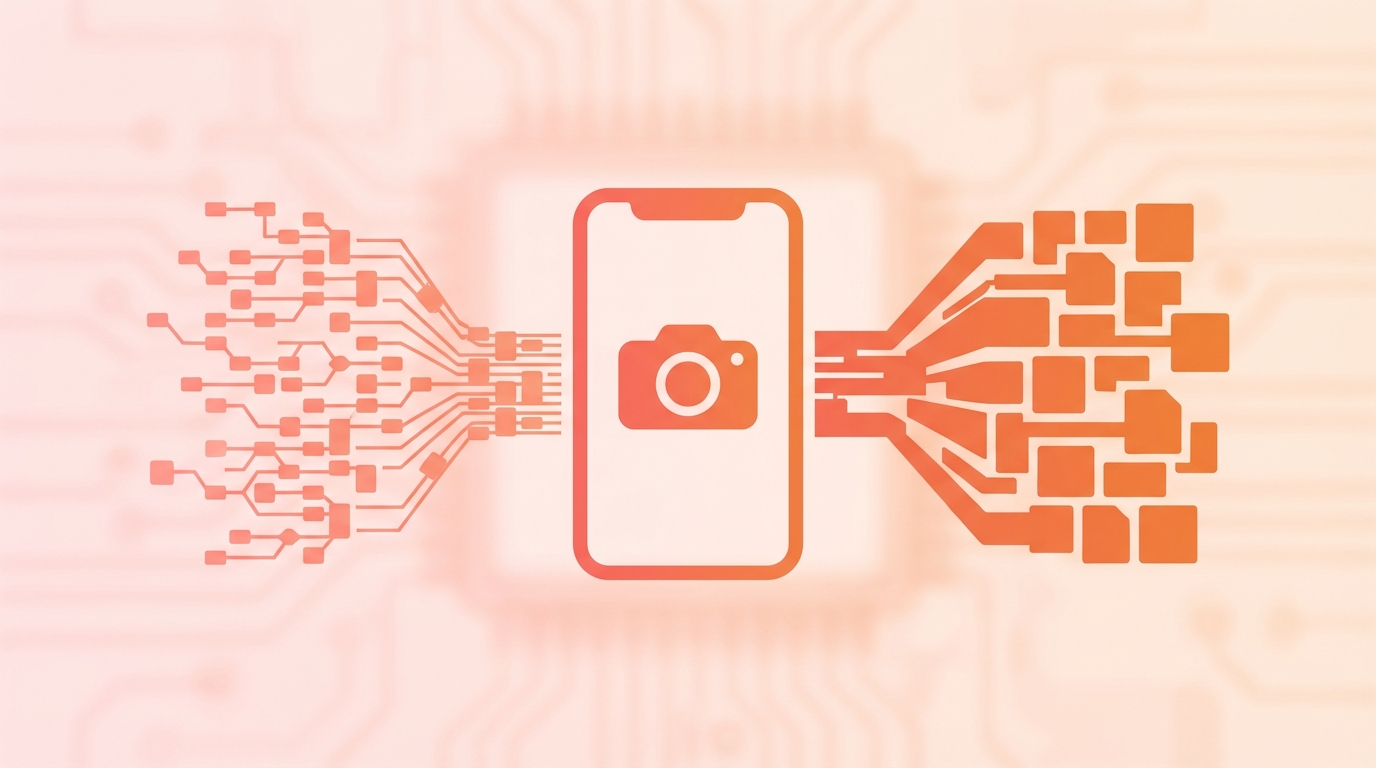
HEIC (High Efficiency Image Container) is Apple's default image format for iPhones, offering better compression than JPG. However, compatibility issues mean you often need to convert HEIC to JPG for sharing or editing.
What is HEIC?
HEIC (also called HEIF) uses advanced compression technology (HEVC/H.265) to store images at half the file size of JPG while maintaining the same quality. Apple adopted HEIC in iOS 11 (2017) to help users save storage space.
HEIC vs JPG Comparison
| Feature | HEIC | JPG |
|---|---|---|
| File size | ~50% smaller | Standard |
| Quality | Same or better | Standard |
| Compatibility | Limited | Universal |
| Live Photos | Supported | No |
| Edit depth | 16-bit | 8-bit |
HEIC Advantages
- Smaller files - Save 50% storage space on your iPhone
- Better quality - Less compression artifacts at same size
- 16-bit color - More color information for editing
- Live Photos - Single file contains image and video
- Multiple images - Can store burst shots in one file
JPG Advantages
- Universal compatibility - Works everywhere
- No conversion needed - Share directly with anyone
- Wider software support - All image editors support JPG
- Web-ready - Standard format for websites
When to Convert HEIC to JPG
- Sharing photos with Android users
- Uploading to websites that don't support HEIC
- Opening in older software versions
- Sending via email to ensure recipients can view
- Printing at services that require JPG
How to Convert HEIC to JPG
Method 1: Online Converter
- Visit the HEIC to JPG converter
- Upload your HEIC files
- Adjust quality if needed
- Download converted JPG files
Method 2: iPhone Settings
To have iPhone automatically send JPG when sharing:
- Go to Settings → Photos
- Under "Transfer to Mac or PC", select "Automatic"
Method 3: Change iPhone Capture Format
- Settings → Camera → Formats
- Select "Most Compatible" (JPG instead of HEIC)
Quality Considerations
When converting HEIC to JPG:
- Some quality loss is inevitable (JPG is lossy)
- Use 90-95% quality to minimize visible difference
- Keep original HEIC files as masters if possible
- 16-bit color depth is reduced to 8-bit
Ready to Convert Your Files?
Try our free online converter - no registration required!
Frequently Asked Questions
Written by Apps66 Team
The Apps66 team creates helpful tutorials and guides to help you get the most out of file conversion and online tools.
View all articles →