Tutorials
How to Split PDF Files: Extract Pages and Create New Documents
A
Apps66 Team
Author
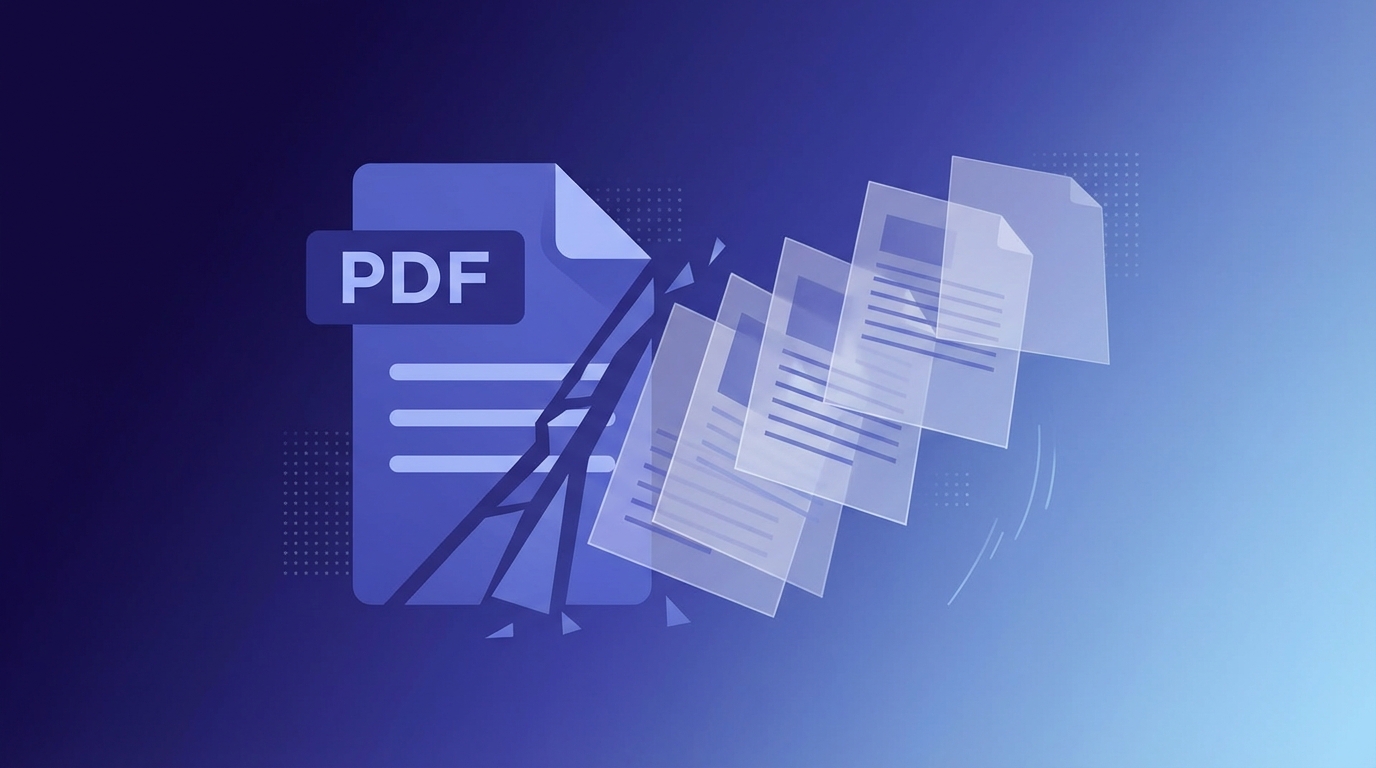
Splitting a PDF allows you to extract specific pages or divide a large document into smaller, more manageable files. This is useful for separating chapters, extracting forms, or sharing only relevant portions of a document.
Why Split PDF Files?
- Extract specific pages - Pull out only the pages you need
- Create chapters - Divide a book or manual into sections
- Share selectively - Send only relevant pages instead of entire documents
- Reduce file size - Work with smaller, focused documents
- Meet upload limits - Split large PDFs to meet size restrictions
Methods to Split PDFs
Method 1: Online PDF Splitter
- Upload your PDF file
- Select pages to extract (e.g., 1-5, 8, 12-15)
- Choose to split into individual pages or specific ranges
- Click Split and download the resulting PDFs
Method 2: Adobe Acrobat
- Open PDF in Adobe Acrobat Pro
- Go to Tools → Organize Pages
- Select pages and click Extract
- Choose extraction options and save
Method 3: Preview on Mac
- Open PDF in Preview
- View → Thumbnails to see all pages
- Select pages to extract (Cmd+click for multiple)
- Drag selected thumbnails to desktop to create new PDF
Split Options Explained
- Extract pages - Pull specific pages into a new PDF (e.g., pages 5-10)
- Split by page - Create separate PDFs for each page
- Split by range - Divide into chunks (e.g., every 10 pages)
- Remove pages - Delete unwanted pages from the document
Tips for Splitting PDFs
- Preview before splitting - Make sure you're extracting the right pages
- Name files clearly - Include page numbers or content descriptions in filenames
- Keep the original - Always preserve your source PDF
- Check page orientation - Ensure all pages are rotated correctly after splitting
Common Use Cases
Extracting a Form
Many PDFs contain a fillable form on specific pages. Extract just those pages to share or complete separately.
Creating Chapter Files
Split an ebook or manual by chapter for easier navigation and faster loading.
Removing Confidential Pages
Extract only the pages that are appropriate to share, excluding sensitive information.
swap_horiz
Ready to Convert Your Files?
Try our free online converter - no registration required!
help_outline
Frequently Asked Questions
You may need to enter the password or remove protection first.
No, splitting simply separates pages without any recompression or quality loss.
Yes, specify any combination like 1-3, 7, 12-15 to extract non-consecutive pages into one PDF.
A
Written by Apps66 Team
The Apps66 team creates helpful tutorials and guides to help you get the most out of file conversion and online tools.
View all articles →