Tutorials

How to Resize Images for Social Media: Complete Size Guide

A
Apps66 Team
Author
calendar_today November 25, 2025 update Updated Jan 26, 2026 schedule 2 min read visibility 65 views
How to Resize Images for Social Media: Complete Size Guide

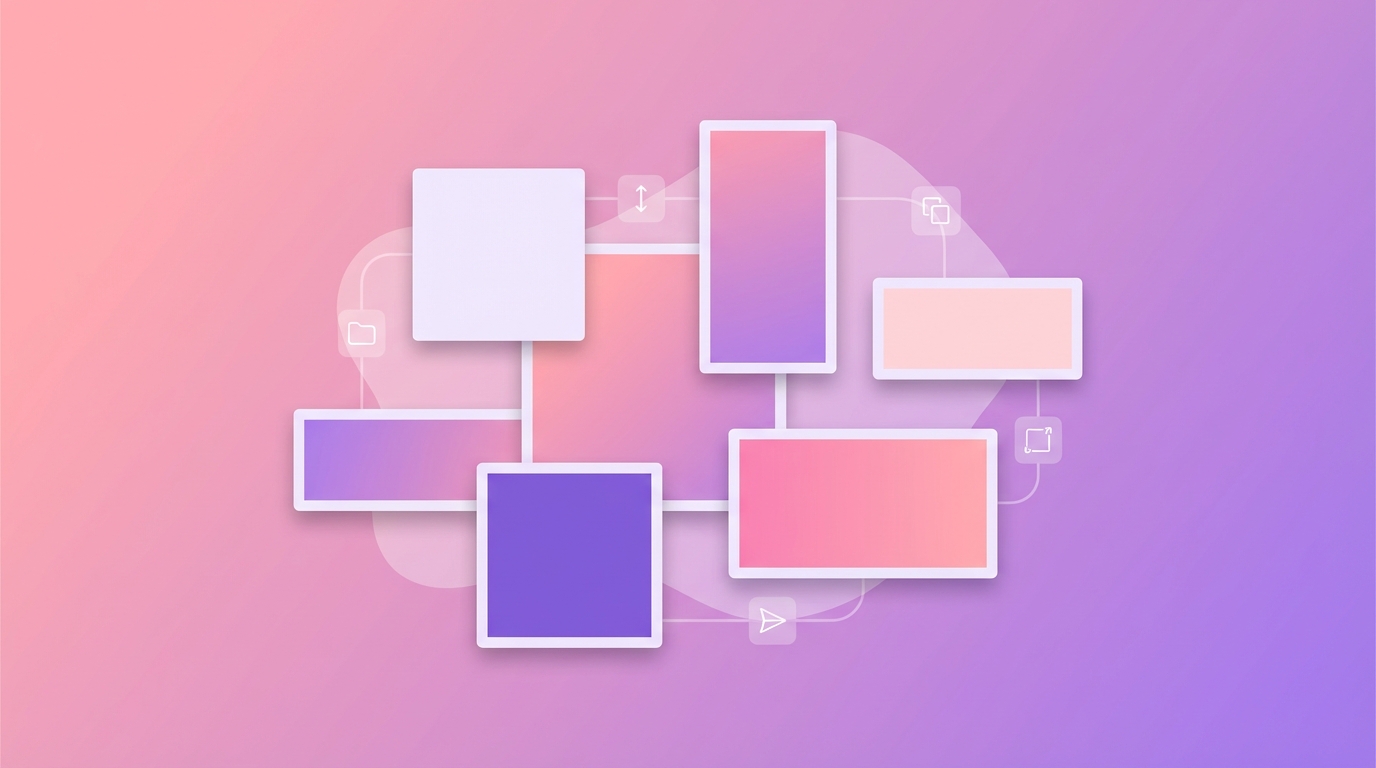
Each social media platform has specific image size requirements for profile pictures, cover photos, and posts. Using incorrectly sized images can result in awkward cropping, blurry photos, or wasted screen space. This guide covers optimal sizes for all major platforms.

Why Image Size Matters

  • Visual quality - Correctly sized images look sharp and professional
  • Proper display - Avoid unexpected cropping of important elements
  • Fast loading - Optimized sizes load faster on mobile devices
  • Brand consistency - Professional appearance across platforms

Social Media Image Sizes (2024)

Instagram

  • Profile Picture: 320 x 320 pixels
  • Square Post: 1080 x 1080 pixels
  • Portrait Post: 1080 x 1350 pixels
  • Landscape Post: 1080 x 566 pixels
  • Stories: 1080 x 1920 pixels
  • Reels Cover: 1080 x 1920 pixels

Facebook

  • Profile Picture: 180 x 180 pixels
  • Cover Photo: 820 x 312 pixels
  • Shared Image: 1200 x 630 pixels
  • Event Cover: 1920 x 1080 pixels
  • Stories: 1080 x 1920 pixels

Twitter/X

  • Profile Picture: 400 x 400 pixels
  • Header Image: 1500 x 500 pixels
  • In-Stream Photo: 1600 x 900 pixels

LinkedIn

  • Profile Picture: 400 x 400 pixels
  • Background Image: 1584 x 396 pixels
  • Shared Image: 1200 x 627 pixels
  • Company Logo: 300 x 300 pixels

YouTube

  • Profile Picture: 800 x 800 pixels
  • Channel Banner: 2560 x 1440 pixels
  • Video Thumbnail: 1280 x 720 pixels

How to Resize Images

  1. Visit the Image Resizer
  2. Upload your image
  3. Enter the dimensions for your target platform
  4. Choose to maintain aspect ratio or allow cropping
  5. Download your resized image

Tips for Best Results

  • Start with high-resolution images - You can always scale down, not up
  • Keep important elements centered - Social platforms may crop differently on mobile vs desktop
  • Test on mobile - Most social media browsing happens on phones
  • Save presets - Create templates for sizes you use frequently
swap_horiz

Ready to Convert Your Files?

Try our free online converter - no registration required!

Convert Now arrow_forward
help_outline

Frequently Asked Questions

Scaling down maintains quality. Scaling up may cause blurriness. Start with high-resolution source images.
Yes, our batch resize feature lets you process multiple images with the same dimensions.
JPG is best for photos. PNG is better for graphics with text or logos.

Share this article

A

Written by Apps66 Team

The Apps66 team creates helpful tutorials and guides to help you get the most out of file conversion and online tools.

View all articles →