Tutorials
PNG to JPG: When and How to Convert for Best Results
A
Apps66 Team
Author
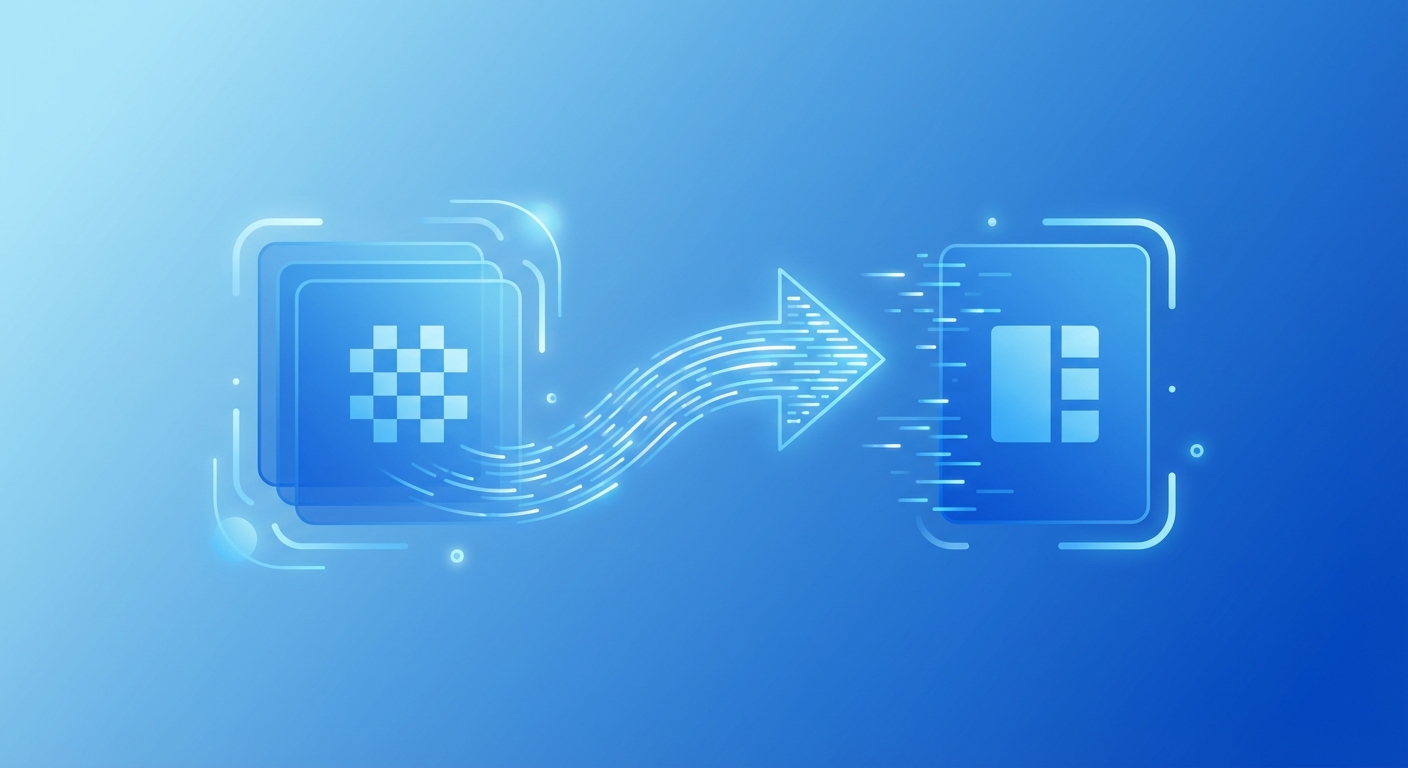
PNG and JPG are the two most common image formats, each with distinct advantages. Converting PNG to JPG is often necessary to reduce file size, improve website loading times, or meet specific format requirements.
When to Convert PNG to JPG
- Smaller file size needed - JPG compression can reduce file size by 80% or more
- No transparency required - If transparency isn't needed, JPG is more efficient
- Website optimization - Smaller JPGs mean faster page loading
- Email attachments - Stay under attachment size limits
- Platform requirements - Some services specifically require JPG
PNG vs JPG: Understanding the Difference
- PNG - Lossless compression, supports transparency, better for graphics/text, larger files
- JPG - Lossy compression, no transparency, better for photos, smaller files
How to Convert PNG to JPG
Method 1: Online Converter
- Visit the PNG to JPG converter
- Upload your PNG files
- Adjust quality settings (default 85% recommended)
- Select background color for transparent areas
- Click Convert and download
Method 2: Windows Paint
- Open PNG in Paint
- Click File → Save As → JPEG picture
- Choose location and save
Method 3: Photoshop
- Open PNG in Photoshop
- Go to File → Export → Save for Web
- Select JPEG format
- Adjust quality and save
Handling Transparency
JPG does not support transparency. When converting PNGs with transparent backgrounds:
- Default white - Transparent areas become white
- Custom color - Choose any background color before converting
- Consider alternatives - If transparency is important, keep the PNG or use WebP
Quality Settings Explained
- 100% - Highest quality, largest file, minimal compression
- 85-95% - Excellent quality, good compression (recommended for most uses)
- 70-84% - Good quality, noticeable compression, much smaller files
- Below 70% - Visible artifacts, smallest files, use only when size is critical
swap_horiz
Ready to Convert Your Files?
Try our free online converter - no registration required!
help_outline
Frequently Asked Questions
JPG uses lossy compression, so there may be slight quality loss. Use 90%+ quality for minimal degradation.
Transparent areas will be filled with a background color (white by default, or your choice).
Yes, our batch converter handles multiple files simultaneously.
A
Written by Apps66 Team
The Apps66 team creates helpful tutorials and guides to help you get the most out of file conversion and online tools.
View all articles →