How to Convert PDF to Word Without Losing Formatting
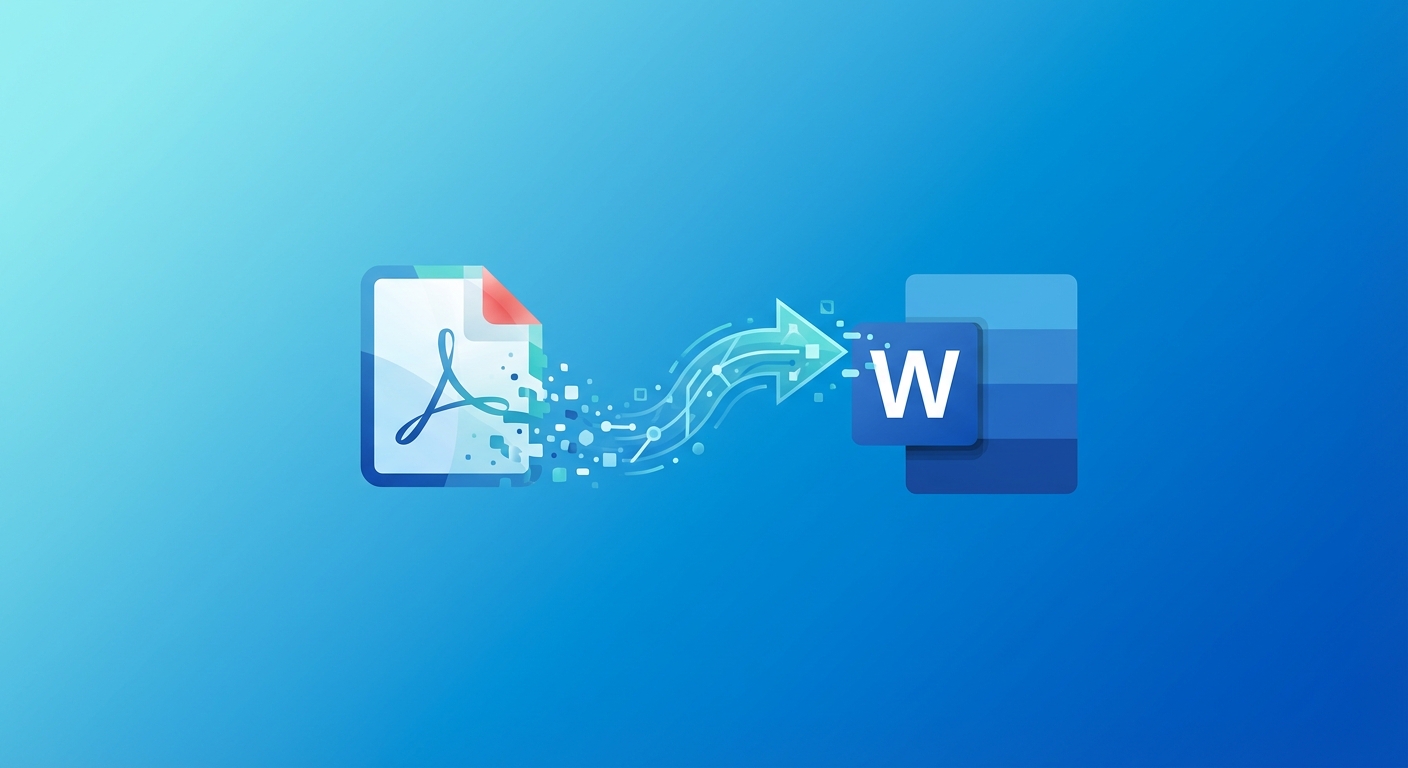
Table of Contents
Converting PDF files to editable Word documents is one of the most common document conversion tasks. Whether you need to update a contract, edit a report, or repurpose content, knowing how to convert PDF to Word efficiently can save you hours of manual retyping.
Why Convert PDF to Word?
PDF (Portable Document Format) is excellent for sharing and viewing documents, but editing PDFs can be challenging without specialized software. Converting to Word (DOCX) format allows you to:
- Edit text freely - Make changes directly in your word processor
- Reformat content - Adjust fonts, spacing, and layout
- Collaborate easily - Use track changes and comments
- Repurpose content - Copy sections for new documents
Methods to Convert PDF to Word
Method 1: Online PDF Converter (Recommended)
Online converters like Apps66 offer the fastest and most convenient way to convert PDFs:
- Visit the PDF to Word converter
- Upload your PDF file by drag-and-drop or clicking to browse
- Enable OCR if your PDF is scanned (contains images of text)
- Click Convert and download your Word file
This method requires no software installation and works on any device with a web browser.
Method 2: Microsoft Word
Microsoft Word can open PDF files directly:
- Open Microsoft Word
- Go to File → Open
- Select your PDF file
- Word will convert it automatically (with some formatting changes)
Note: Word's built-in converter may struggle with complex layouts.
Method 3: Adobe Acrobat
Adobe Acrobat Pro offers professional-grade conversion:
- Open the PDF in Adobe Acrobat Pro
- Click Export PDF in the right panel
- Choose Microsoft Word as the export format
- Click Export
This is the most accurate option but requires a paid subscription.
Tips for Better Conversion Results
- Use high-quality PDFs - Documents created digitally convert better than scanned ones
- Enable OCR for scans - This extracts text from images
- Check formatting after - Some manual adjustments may be needed
- Keep fonts simple - Standard fonts convert more reliably
Common Conversion Issues and Solutions
Tables Not Converting Properly
Complex tables may need manual adjustment. Try converting to HTML first, then to Word.
Missing Fonts
If the original PDF uses fonts not installed on your system, Word will substitute similar fonts.
Images Not Appearing
Ensure images are embedded in the PDF, not linked. Very high-resolution images may be compressed.
Ready to Convert Your Files?
Try our free online converter - no registration required!
Written by Apps66 Team
The Apps66 team creates helpful tutorials and guides to help you get the most out of file conversion and online tools.
View all articles →