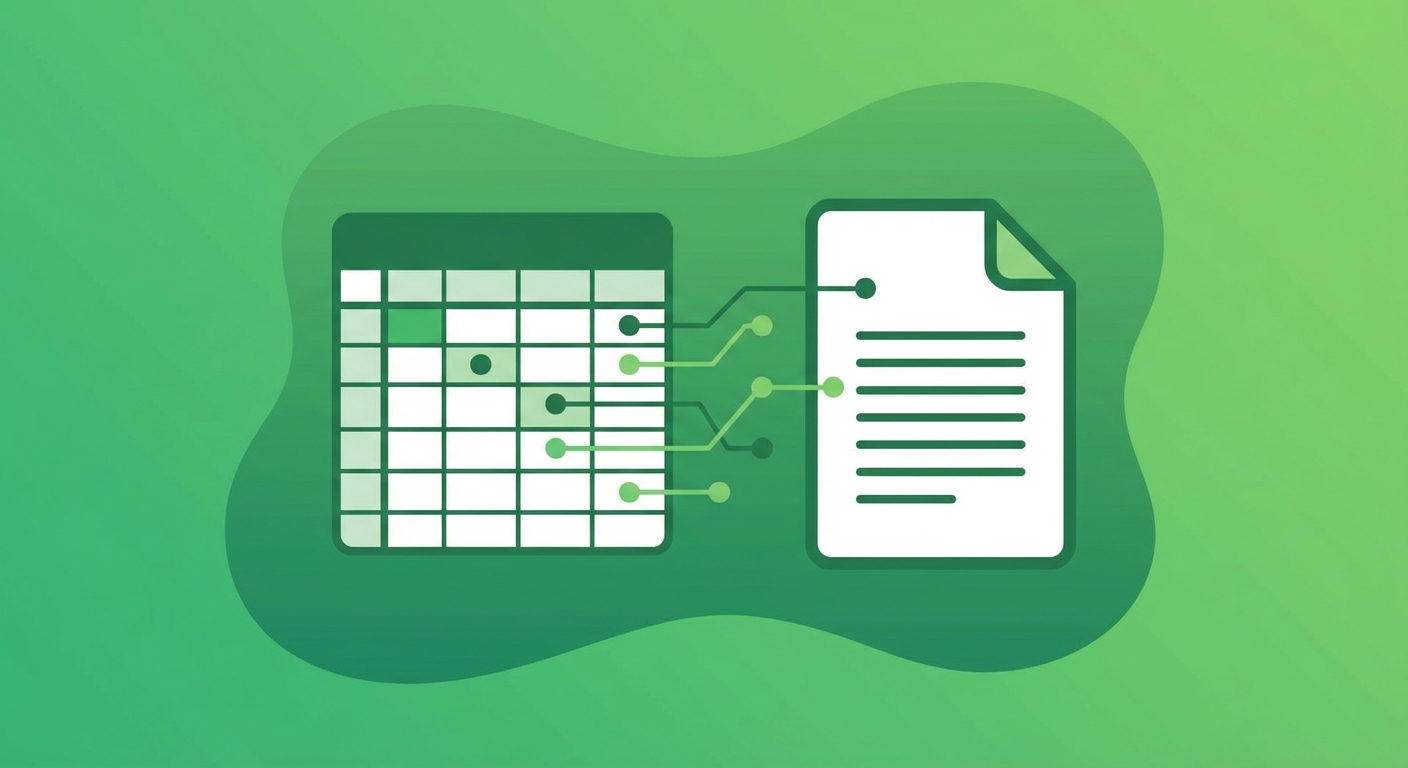
How to Convert Excel to PDF with Perfect Formatting
Converting Excel spreadsheets to PDF is essential when you need to share financial reports, data tables, or any spreadsheet content while preserving formatting and preventing unauthorized edits. PDF ensures your spreadsheet looks the same on any device.
Why Convert Excel to PDF?
- Preserve formatting - Columns, fonts, and colors stay exactly as designed
- Universal viewing - Anyone can open PDFs without Excel
- Prevent editing - Protect data from accidental or intentional changes
- Professional sharing - PDFs look more polished than spreadsheet files
- Print-ready - PDF maintains print layout across systems
Methods to Convert Excel to PDF
Method 1: Online Converter (No Software Required)
- Visit the Excel to PDF converter
- Upload your Excel file (.xlsx or .xls)
- Select conversion options (fit to page, include all sheets, etc.)
- Click Convert and download your PDF
Method 2: Microsoft Excel Built-in
- Open your spreadsheet in Excel
- Go to File → Save As (or Export)
- Choose PDF from the format dropdown
- Click Options to select which sheets to include
- Click Save
Method 3: Print to PDF (Windows/Mac)
- Open Excel file
- Press Ctrl+P (or Cmd+P on Mac)
- Select "Microsoft Print to PDF" or "Save as PDF"
- Adjust page settings if needed
- Click Print/Save
Common Issues and Solutions
Spreadsheet Doesn't Fit on Page
Use Page Layout → Fit to 1 Page Wide by X Tall, or switch to landscape orientation for wide spreadsheets.
Columns Are Cut Off
Set a custom print area (Page Layout → Print Area → Set Print Area) to include only necessary columns.
Multiple Sheets Not Converting
In conversion options, select "Entire Workbook" instead of "Active Sheet".
Tips for Better PDFs
- Set print area before converting to control what's included
- Use Page Break Preview to see how pages will be divided
- Add headers/footers for page numbers and document info
- Hide unnecessary columns/rows to focus on key data
Ready to Convert Your Files?
Try our free online converter - no registration required!
Frequently Asked Questions
Written by Apps66 Team
The Apps66 team creates helpful tutorials and guides to help you get the most out of file conversion and online tools.
View all articles →